Store Launch Diagnostics: Products, Theme, Domain, Checkout
A Shopify troubleshooting checklist should start with the simplest store controls before moving into themes, apps, or code. Check product status, sales channel availability.

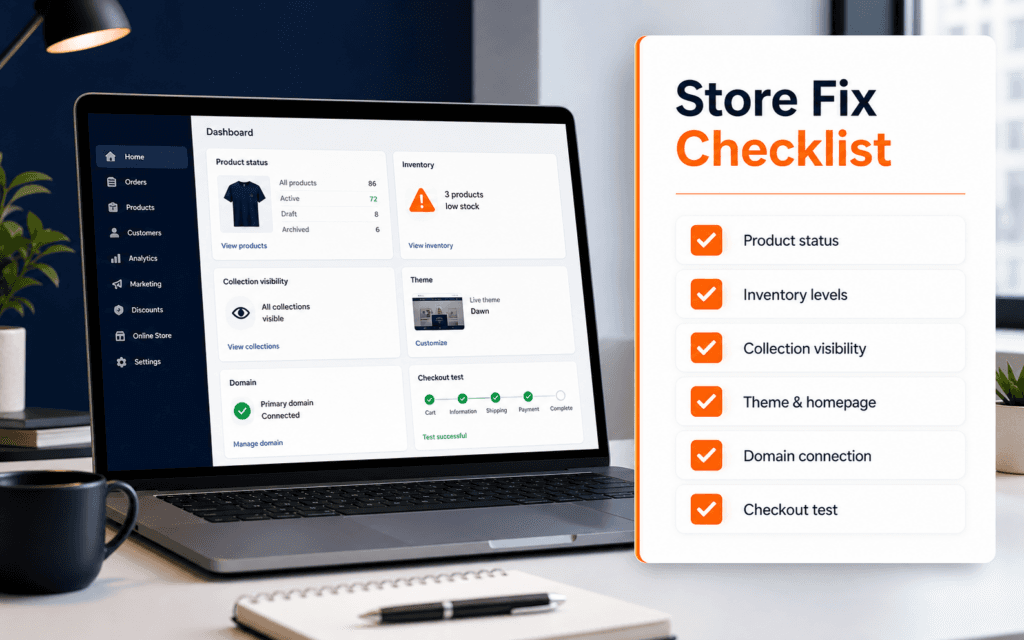
A Shopify troubleshooting checklist should start with the simplest store controls before moving into themes, apps, or code. Check product status, sales channel availability, inventory, collections, navigation, theme sections, domain connection, checkout settings, and recent app changes in that order. Most beginner store problems are caused by configuration, visibility, or theme edits rather than a broken platform.
This order matters because it prevents panic debugging. A product that is not visible may not need a developer. A page layout problem may come from a section setting. A checkout issue may come from store settings rather than the theme. A domain warning may need DNS review rather than a new website. Troubleshooting is easier when you move from store data to storefront display to checkout and domain.
Confirm The Exact Problem First
Before changing settings, define the failure in one sentence. A missing product, unavailable purchase button, empty collection, broken homepage layout, checkout error, or domain warning each points to a different part of Shopify.
Beginners often change too many things at once. That makes the store harder to repair because there is no clear connection between the change and the result. A better method is to test one issue, change one setting, preview, and record the outcome. This creates a trail that another person can follow.
Use two views while troubleshooting. Keep the Shopify admin open for settings and keep the storefront open in a private browser window or a different device. The admin can show that a product exists, but the storefront shows what customers actually experience. Always verify from the customer side before deciding that a fix worked.
Check Product Status And Sales Channels
If a product is missing, start with the product details page. Shopify product documentation shows that product records include status, media, pricing, inventory, organization, and search engine listing fields. For beginners, the most important checks are status, availability, product title, price, inventory, and collection assignment.
A product can exist in the admin and still be unavailable to customers. Confirm that the product is active and available on the online store sales channel. If the product is still hidden, check whether it belongs to the right collection and whether that collection is linked in navigation.
Also check product media and variants. A product with missing images can look incomplete. A product with variants may appear confusing if prices, inventory, or options are inconsistent. If one variant is available and another is not, test both from the storefront.
Inventory deserves careful attention. Shopify documentation explains that inventory settings can affect whether a product continues selling when stock reaches zero. If customers cannot buy an item, check whether inventory is tracked, whether stock is available at the correct location, and whether overselling is allowed or blocked.
Review Collections And Navigation
If products are active but customers cannot find them, the problem may be collections or navigation. A collection can exist without being surfaced in the menu. A product can be assigned to a collection that is not displayed on the storefront. Navigation may link to the wrong collection or an old page.
Start by opening the collection in the admin. Confirm that the products appear there. Then open the menu settings and verify that the storefront navigation links to the correct collection. Finally, test the menu from desktop and mobile. A link that looks obvious on desktop may be buried or broken in the mobile menu.
Beginners should also understand automatic collections. If a collection uses conditions, products appear only when they match those conditions. A typo in product type, vendor, tag, or price condition can leave the collection empty. Manual collections are simpler for early practice, while automatic collections are useful once product organization becomes consistent.
Do not fix collection problems by duplicating products or creating random new collections. That usually creates a messy store. Fix the data, then fix the navigation.
Inspect Theme Sections Before Editing Code
Many storefront problems are theme configuration problems. Shopify explains that themes use sections and blocks to control editable page areas. That means a missing banner, product grid, image block, text block, or featured collection may be controlled in the theme editor.
Open the theme editor and check the template being used. A homepage section does not control a product template. A collection template does not control checkout. A product template may be shared across many products, so a layout change can affect more than one item.
For beginner troubleshooting, avoid editing theme code first. Check whether the section is hidden, whether the wrong collection is selected, whether a block was removed, whether an image is missing, or whether the template assignment changed. These are safer fixes and easier to reverse.
Preview unpublished theme changes carefully. If the live store is working but a draft theme is broken, the problem may be in the draft configuration. If the live theme is broken after an edit, restore the previous section setting if possible and document what changed.
The Shopify Development course is useful here because students learn how store settings, themes, products, and customer experience fit together instead of treating every issue as a coding problem.
Test Checkout Settings And Purchase Flow
If products display correctly but customers cannot place an order, move to checkout settings and payment flow. Shopify checkout settings control important customer account, contact, address, marketing, and order processing options. A checkout issue may be caused by required fields, market settings, shipping zones, payment setup, tax settings, or inventory.
Run a test path from product page to cart to checkout. Note exactly where the problem appears. Check the add-to-cart button, cart quantity update, shipping result, payment method availability, and any error message that mentions address, shipping, inventory, or payment.
Shipping is a common beginner issue. A product may be available, but checkout cannot complete because there is no shipping rate for the customer’s address or market. Check shipping profiles, zones, package settings, and whether the product requires shipping.
Payment settings should also be verified from the admin. Do not assume the problem is the theme if checkout reaches the payment step and then fails. Payment provider status, currency, market configuration, or test mode can affect the final step.
Troubleshoot Domain And Store Access
Domain issues should be handled separately from product and theme issues. Shopify domain troubleshooting guidance covers connection status, DNS settings, provider configuration, and propagation. If a custom domain is not working, check Shopify’s domain status first, then review DNS records at the domain provider.
DNS changes can take time to propagate. During that period, different devices or networks may show different results. Record when the change was made and avoid repeatedly replacing records without a reason. Too many changes can extend confusion.
Also test the store using the default Shopify domain if needed. If the default domain works and the custom domain does not, the store itself is probably available and the issue is domain configuration. If both fail, investigate store status, password protection, theme, or platform messages.
For client work, always capture screenshots of the DNS settings before changing them. That small habit can save hours if a previous configuration needs to be restored.
Check Apps And Recent Changes
Apps can add scripts, modify themes, create discounts, change product display, add checkout behavior, or affect performance. If a problem started after installing or updating an app, treat that timing as evidence. Do not uninstall everything at once. Disable, review, or contact app support based on the issue and the risk.
A useful troubleshooting log has four columns: time, change made, expected result, actual result. Include app installations, theme edits, product imports, domain changes, navigation edits, and checkout setting changes. This log turns a confusing store problem into a sequence.
If the store has multiple team members, ask what changed before you begin. The fastest technical fix may be a simple conversation.
Mobile, Speed, And Visual Checks
Many Shopify problems are not complete failures. They are usability problems. The product is visible, but the image is cropped badly on mobile. The menu works, but the important collection is too deep. The checkout works, but the trust information is missing. The theme looks fine on a large monitor but crowded on a phone.
Test the main shopping path on mobile: homepage, collection, product, cart, checkout start. Look for overlapping text, tiny buttons, missing images, slow sections, confusing filters, and unclear calls to action. The Web Design course connects well with this part because store troubleshooting is also experience troubleshooting.
Do not add more design elements to solve clarity problems. Often the fix is removing clutter, improving hierarchy, choosing better product photos, or simplifying navigation.
A Practical Beginner Checklist
Use this order when a Shopify store does not behave as expected. First, define the problem in one sentence. Second, check product status and online store availability. Third, check price, inventory, variants, and images. Fourth, confirm collection assignment and menu links. Fifth, inspect the correct theme template, section, and block settings. Sixth, test cart and checkout settings. Seventh, review shipping, payment, and market settings. Eighth, check domain status and DNS if store access is the problem. Ninth, review apps and recent changes. Tenth, test on mobile and document the fix.
This process is slower than random clicking for the first five minutes, but much faster over a full project. It also builds professional confidence. The best Shopify troubleshooters are not people who know every setting by memory. They are people who can isolate a problem, test one layer at a time, and verify the customer experience before calling the job done.
In Gujrat, Punjab, Pakistan, prospective learners can apply the practical approach in this article when discussing the Shopify Development with an admissions adviser. Questions should stay tied to current exercises, review methods, prerequisites, and project evidence.
FAQ
Why is my Shopify product not showing on the store?
Check whether the product is active, available on the online store sales channel, assigned to the right collection, visible through navigation, and stocked correctly if inventory tracking is enabled.
Should beginners edit Shopify theme code to fix layout problems?
Not first. Check the theme editor, template assignment, sections, blocks, images, and collection selections before editing code. Many layout issues are configuration issues.
What should I check if checkout is not working?
Test the path from product to cart to checkout, then review inventory, shipping zones, payment provider status, checkout settings, market configuration, and any recent app changes.
Want to Build Practical Technology Skills?
Explore RisingEdge courses designed to help students learn real skills, build projects, and prepare for career opportunities.