WordPress Update Safety Checklist: Backup, Test, Verify
A WordPress update safety checklist should protect the live site before it improves anything. The practical order is simple: confirm site access, create a restorable backup, review.

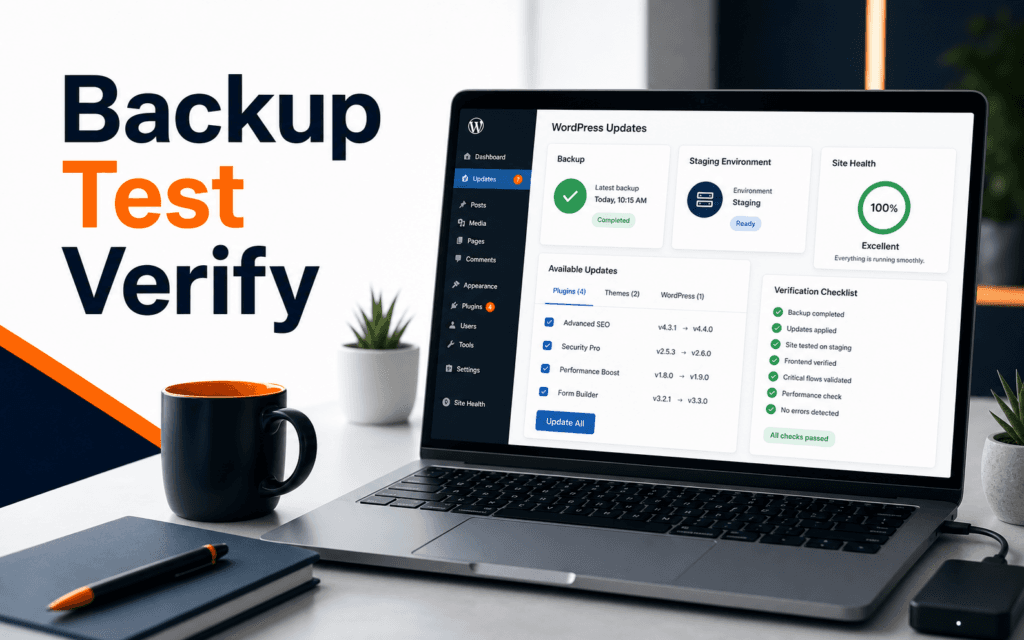
A WordPress update safety checklist should protect the live site before it improves anything. The practical order is simple: confirm site access, create a restorable backup, review Site Health, update in a controlled order, test the important pages, check forms and checkout paths, then record what changed. Skipping these steps is why a routine plugin update can become a client emergency.
Updates are not dangerous by default. They become risky when nobody knows what the site depends on, whether there is a current backup, or how to verify the result. A working professional needs a repeatable process, not a habit of clicking every update button and hoping the site still works.
Start With Access And Backup
Before any update, confirm that you can access the WordPress admin, hosting panel, domain records if needed, and the backup or restore tool. This sounds basic, but it matters when an update breaks a site and the only person with hosting access is unavailable.
WordPress backup guidance emphasizes that a useful backup includes both database content and site files. The database stores posts, pages, settings, users, and many plugin records. Files include themes, plugins, uploads, and other site assets. A backup that includes only one side may not be enough to restore the full site.
Do not treat a backup as complete until you know where it is stored and how it would be restored. For learning projects, write the restore steps in plain language. For client work, keep the backup location and date in the maintenance notes. The goal is not only to create a backup. The goal is to make recovery realistic.
If the site is important, use staging when available. A staging site lets you test updates away from the public site. Beginners sometimes skip staging because it feels slower, but staging is faster than repairing a broken live site under pressure.
Review Site Health Before Updating
The WordPress Site Health screen gives a useful pre-update snapshot. WordPress documentation describes two main tabs: Status and Info. Status highlights critical issues and recommended improvements. Info provides configuration details about WordPress, directories, themes, plugins, media handling, server, database, constants, and permissions.
Use Site Health as a diagnostic note, not as a single score to chase. A site can have warnings that are not urgent, and a site can still need manual review even if the screen looks clean. The value is that it shows obvious problems before updates begin.
Check PHP version, inactive themes, inactive plugins, REST API warnings, loopback request issues, and file permission notes. If Site Health already shows critical issues, document them before updating. Otherwise, a problem that existed before the update may be blamed on the update.
This step is especially important for students practicing WordPress maintenance. A professional does not only fix visible pages. A professional checks the environment that supports those pages.
Update In A Controlled Order
WordPress documentation explains that WordPress can be updated through a one-click update process or a manual update process. For most normal admin workflows, the one-click path is common, but the safety process around it still matters.
Avoid updating everything at once on a site you do not understand. Review core, theme, and plugin updates separately. Read changelog notes when the update affects a critical plugin, page builder, form tool, e-commerce feature, security plugin, or custom functionality.
A practical order is to update low-risk plugins first, then critical plugins with testing between them, then the active theme, then WordPress core when appropriate. Some teams prefer a different order based on staging and dependency rules. The key is not the exact sequence; the key is testing after meaningful changes.
For each update, record plugin or theme name, old version, new version, date, person responsible, and test result. This creates a maintenance history that helps with future troubleshooting.
Test The Pages That Matter
After updates, do not test only the homepage. Test the pages that create value for the site. For a training institute, that may include course pages, admissions, contact, blog articles, and any form submission path. For a store, test product pages, cart, checkout start, account pages, and payment settings where possible.
Use a short test path. Open the homepage, navigate to a course page, open a blog article, submit or test a form safely, check the menu on mobile, and confirm images load. If the site has search, filters, login, payments, or downloads, test those too.
Look for broken layouts, missing images, disabled buttons, form errors, console errors, slow sections, and changed typography. Some update problems are subtle. A page may still load but the design may have shifted, a form field may no longer validate, or a menu may stop working on mobile.
The WordPress Development course connects directly to this workflow because safe maintenance is part of real WordPress skill. Knowing where to click is not enough. You need a system for proving the site still works.
Check Plugins And Themes Carefully
WordPress plugin management includes installing, activating, deactivating, updating, and deleting plugins from the admin area. That control is useful, but it also means plugins can change the site deeply. A plugin may affect forms, SEO, security, cache, media, custom post types, or checkout.
Before updating a critical plugin, identify what it controls. If it controls forms, test forms. If it controls SEO metadata, check a page title and description. If it controls cache, clear cache and retest. If it controls e-commerce, test cart and checkout paths carefully.
Themes deserve similar care. A theme update can affect templates, headers, footers, menus, typography, responsive behavior, and customizer settings. If the site uses a child theme or custom code, document that before updating.
Do not deactivate plugins randomly on a live site unless you understand the impact. If troubleshooting requires deactivation, use staging or a maintenance window and record every change.
Verify Mobile And Forms
Mobile testing is not optional. Many WordPress sites look acceptable on desktop and fail on smaller screens after a theme or builder update. Check navigation, header height, button spacing, hero text, course cards, footer links, and contact forms on a mobile-width preview or physical phone.
Forms need special attention because they often rely on plugins, SMTP settings, spam protection, and email routing. Submit a safe test when possible. Confirm that success messages appear and notifications arrive at the correct address. If the site uses SMTP, check whether credentials or sender settings were affected.
For course or admissions sites, form failure is a business problem. A visitor may not report it. They may simply leave. That is why form testing belongs in every update checklist.
Keep A Recovery Plan
Every update session should have a recovery decision. If something fails, will you restore the backup, roll back a plugin, disable a feature, contact hosting support, or pause for developer review? Decide before pressure starts.
A good recovery note includes the backup date, restore location, tested pages, failed item, suspected cause, and next action. If a partial failure appears, such as one broken form or one layout issue, do not panic-restore the entire site without judging the impact. But if a checkout, login, or main conversion path breaks, restoration may be the safer move.
The best maintenance work is quiet. Users should not notice the update. The team should know exactly what changed, what was tested, and how to recover if needed.
Final WordPress Update Checklist
Before updating, confirm access, backup, staging, Site Health, and critical plugin list. During updates, change one meaningful group at a time and record versions. After updates, test homepage, navigation, key pages, forms, mobile layout, media, SEO output, and any business-critical path. Finally, save the maintenance note with date, updates, tests, issues, and recovery status.
Beginners often think WordPress maintenance is a technical trick. In practice, it is a reliability workflow. Backup, test, verify, and record. That routine turns updates from a risky habit into professional site care.
For teams, the checklist should also define responsibility. One person should run the update, one person should review the visible pages, and one person should approve the result when the site supports a real business process. On smaller projects, the same person may do all three jobs, but the steps should still be separated in the notes. This prevents a rushed update from being marked complete before anyone has checked the front end.
A useful maintenance note does not need to be complex. It can be a simple table with the date, update list, backup location, tested URLs, issues found, fixes applied, and final status. Over time, those notes show which plugins create repeated problems and which parts of the site need closer attention. That history is often more valuable than memory when a future issue appears.
For students in Gujrat and learners joining live online classes across Pakistan, this checklist offers a practical way to assess progress in the WordPress Development. Compare programs by the work students can explain and improve, not by software lists alone.
FAQ
Should I update WordPress plugins immediately?
Update important security and compatibility releases promptly, but use a backup and testing workflow first. Critical live sites should use staging when available.
What should a WordPress backup include?
A useful backup should include both the database and site files, including uploads, themes, and plugins, so the site can be restored properly.
What should I test after a WordPress update?
Test key pages, menus, forms, mobile layout, media, SEO output, and any business-critical path such as checkout, login, admissions, or contact.
Want to Build Practical Technology Skills?
Explore RisingEdge courses designed to help students learn real skills, build projects, and prepare for career opportunities.