WordPress Staging to Production Runbook: Data, Cutover, Recovery
A reliable WordPress staging deployment does not copy everything from staging and hope for the best. It identifies who owns code, configuration, database content, uploads, caches.

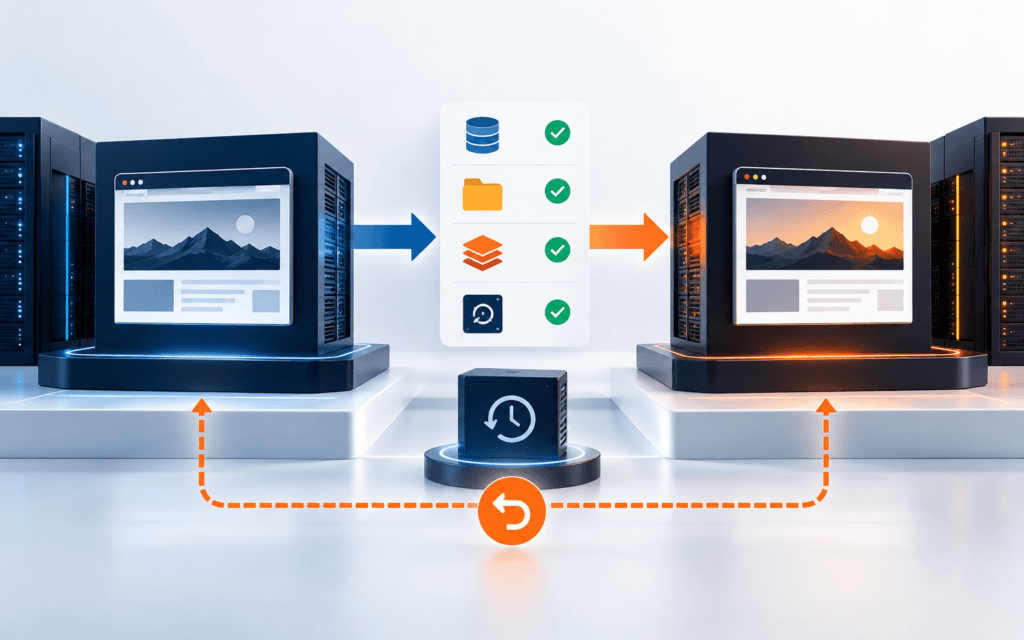
A reliable WordPress staging deployment does not copy everything from staging and hope for the best. It identifies who owns code, configuration, database content, uploads, caches, scheduled work, and external integrations, then moves only the release units that production is allowed to receive.
Before the change, create a restorable database-and-files backup set, record the current production state, and define rollback triggers. After the switch, verify both technical health and business outcomes such as forms, email, checkout, search visibility, scheduled events, and administrator access.
Define The Release Unit
Write down exactly what the release changes: theme files, a custom plugin, selected options, templates, content, media, database schema, or server configuration. Give every item a version or checksum and an owner. A vague instruction such as deploy staging hides whether the database and uploads are included.
Classify production-owned data that must not be overwritten, including orders, users, form entries, comments, analytics settings, live API credentials, and content published after staging was copied. If the release cannot separate these records safely, redesign the migration before opening a deployment window.
Freeze The Deployment Window
Choose a release window with a named operator, reviewer, communication channel, expected duration, and stop time. Decide whether editors, customers, or administrators can continue writing during the change. A content freeze is useful only when its start, scope, and release are explicit.
Record current traffic-sensitive activities such as campaigns, scheduled posts, imports, checkout activity, and background jobs. Put the site in maintenance mode only when necessary and provide a truthful status page. Do not leave an unmonitored maintenance screen active while troubleshooting privately.
Assign Database Ownership
The WordPress database contains posts, pages, users, settings, comments, taxonomy, plugin records, and many operational states. Decide table by table whether production, staging, or a controlled migration owns the final value. A full staging database replacement is rarely appropriate for an active production site.
Map custom tables and network tables as well as the standard prefix. Identify plugins that store settings in wp_options, content in post meta, queues in custom tables, or files outside uploads. Preserve live records unless the reviewed release explicitly transforms them.
Capture A Restorable Backup Set
WordPress documentation distinguishes the database from site files. The official database backup guide notes that a database export does not include themes, plugins, uploads, or wp-config.php. Capture both sides as one timestamped backup set.
Verify the archive can be read, the SQL export is complete, checksums are stored, encryption and retention are appropriate, and restoration credentials are available to the authorized operator. The WordPress upgrade guidance stresses verifying backups before changes because rollback depends on usable files and data.
Compare Staging And Production
Compare WordPress core, PHP, database engine, active theme, must-use plugins, normal plugins, environment variables, cron configuration, object cache, web server, CDN, and filesystem permissions. A staging success on different versions or services is evidence for staging only.
Export a concise difference report rather than copying secret files into a ticket. Mark each difference as intentional, production-only, staging-only, or release-blocking. Resolve unknown differences before the switch because they complicate both diagnosis and rollback.
Plan Database Changes
Prefer versioned plugin migrations or narrowly scoped, repeatable SQL over full database replacement. Make each migration idempotent where possible, define its transaction boundary, estimate lock time, and test it against a recent redacted production copy. Preserve a count or checksum that proves the expected rows changed.
Use the WordPress database migration QA workflow to check URLs, serialization, users, and media. Never edit serialized values with an ordinary text replacement because stored string lengths can become invalid.
Handle Serialized URLs Safely
When environment URLs must change, inventory protocol, hostname, port, path, CDN host, and email-domain differences first. The official WP-CLI search-replace command handles serialized data and offers a dry-run report. Run the dry check and review affected tables before writing.
Exclude GUID changes unless a documented migration specifically requires them. Confirm multisite scope, custom table prefixes, case variants, escaped URLs, JSON values, and plugin-managed data. After replacement, search again for staging domains and inspect representative widgets, blocks, menus, options, and media references.
Synchronize Uploads Without Data Loss
Treat uploads as production data, not disposable build output. Compare by relative path, size, modified time, and checksum. Copy new release assets without deleting newer production uploads. If staging generated derivative sizes, confirm the originals and metadata still correspond to the production attachment records.
Test several image formats, documents, featured images, responsive variants, and protected files. Check filesystem ownership and public URLs. Do not copy media containing personal or confidential production information into an unsecured staging environment, and do not make staging uploads public by accident.
Separate Configuration From Content
Keep environment-specific values outside portable database content when the hosting model supports it. Production database credentials, salts, mail transports, storage keys, analytics identifiers, payment modes, and debug settings should remain production-controlled. Compare wp-config.php and environment variables without exposing their values.
Confirm site URL, home URL, HTTPS behavior, cookie settings, reverse-proxy headers, memory limits, debug logging, filesystem method, and cron mode. A release should not silently enable development logging, use a test payment gateway, or route email through a staging account.
Control Email Jobs And External Services
List every external side effect the site can trigger: email, SMS, CRM updates, webhooks, payment calls, search indexing, feeds, backups, and scheduled imports. Staging should use safe test endpoints or suppression controls. Production must restore the approved live destinations at the correct moment.
Check queued work before the switch and avoid replaying the same event from both environments. For scheduled processing, use the WP-Cron debugging workflow to verify registration, due state, spawning, locks, callback completion, and the final business outcome.
Prepare Cache Invalidation
Name every cache layer: plugin page cache, persistent object cache, PHP opcode cache, web server cache, reverse proxy, CDN, browser cache, and any headless frontend cache. WordPress describes these as separate mechanisms, so one purge button is not proof that every layer changed.
Define the smallest safe invalidation for each layer and the order in which it will run. Preserve cache keys or namespaces that must survive. After release, request representative pages through the public path and inspect status, headers, HTML, assets, and authenticated behavior instead of relying on an administrator preview.
Verify Forms Accounts And Permissions
Test login, logout, password reset, administrator access, least-privilege editor access, file upload, form validation, submission storage, email acceptance, and spam protection. Use synthetic records and remove them afterward. Confirm that staging users or test administrators were not promoted into production.
Review role capabilities and security-plugin rules after database or plugin changes. A page rendering correctly does not prove authenticated workflows work. Record one successful and one rejected case for each critical form, and confirm sensitive fields do not appear in logs or public responses.
Protect SEO And Indexing Signals
Verify robots directives, discourage-search-engine settings, canonical URLs, sitemap URLs, redirects, structured data, Open Graph values, analytics identifiers, and search verification files. Staging should remain protected; production should not inherit noindex or a staging canonical.
Check important old URLs and trailing-slash behavior with real HTTP responses. Preserve the production permalink structure unless the release includes an approved redirect map. Compare title, description, canonical, and indexability on the homepage, key landing pages, posts, taxonomy archives, and a 404 page.
Run The Production Switch
Follow a written sequence with one operator and one reviewer. Typical steps are announce the freeze, confirm monitoring, take the final backup, deploy versioned code, run scoped migrations, synchronize approved media, apply production configuration, invalidate caches, and remove maintenance mode only after smoke checks pass.
Log command names, version identifiers, timestamps, and outcomes without credentials. Stop when an expected checksum, migration count, health check, or permission differs. Do not improvise repeated database imports or broad search-replace commands while production state continues changing.
Complete The Smoke Test
Test the public homepage, a content page, a post, search, navigation, media, a protected administration route, and the main conversion workflow. Confirm HTTP status, visual rendering, JavaScript behavior, server logs, database connectivity, and an actual business result such as a stored form record and accepted email.
Use desktop and mobile widths and include an uncached session. Check critical browser console errors and network failures. Compare one production response with the approved staging evidence, but allow intentional environment differences such as domains, analytics, cache headers, and mail routing.
Monitor After Release
Watch application errors, PHP fatals, web-server responses, database load, cache health, background jobs, form delivery, checkout failures, and unusual authentication activity. Set a defined observation period and ownership handoff instead of declaring success immediately after the homepage loads.
Compare rates with a recent baseline and investigate meaningful changes. Preserve correlation IDs and redacted evidence for failures. If alerts were paused during maintenance, restore and test them. Record known limitations and schedule follow-up work rather than hiding unresolved warnings.
Prove The Rollback Path
Define rollback triggers before release, such as failed migrations, broken authentication, lost submissions, checkout errors, widespread 5xx responses, or unrecoverable cache inconsistency. Identify which code image, database backup, uploads snapshot, and configuration version form one compatible rollback point.
Practice restoration on staging and estimate recovery time. A code rollback cannot reverse an incompatible database migration by itself, and an old database restore can erase new production records. The WordPress update safety checklist provides a related backup, test, verification, and recovery discipline.
Approve With Evidence
Release approval should include code version, database migration result, upload comparison, configuration check, cache invalidation, smoke-test evidence, monitoring status, and rollback readiness. Each item needs an owner and a clear pass, fail, or accepted limitation.
Block the release when database ownership is unclear, backups are unverified, staging URLs remain, production uploads could be deleted, credentials are mixed, external side effects are uncontrolled, or rollback is incompatible. The WordPress Development course can build the configuration, migration, plugin, testing, and maintenance skills behind this checklist.
For learners in Gujrat and those considering live online classes across Pakistan, this workflow creates useful questions to ask before entering the WordPress Development. Verify current delivery details, then look for guided practice, specific feedback, and work that can be tested or reviewed.
FAQ
Should I copy the complete staging database to production?
Usually not on an active site. First identify production-owned records such as users, orders, submissions, comments, settings, and recent content, then migrate only the reviewed schema or data changes that staging is authorized to own.
How should WordPress URLs be changed during deployment?
Inventory every environment URL, run a serialization-aware WP-CLI search-replace dry run, review affected tables, perform the scoped replacement, and then search again for staging domains. Do not use a blind text replacement on serialized values.
What must a WordPress rollback include?
Use a compatible set of versioned code, database backup, uploads, and production configuration. Define triggers in advance and verify restoration on staging, because reverting code alone may not reverse database or content changes.
Want to Build Practical Technology Skills?
Explore RisingEdge courses designed to help students learn real skills, build projects, and prepare for career opportunities.