Prepare for Practical IT Classes: Device, Access, Files, Backup
IT training lab readiness means arriving able to start practical work, preserve it, and repeat it after class. Confirm the institute’s requirements, test the device and required.

IT training lab readiness means arriving able to start practical work, preserve it, and repeat it after class. Confirm the institute’s requirements, test the device and required accounts, create a predictable file system, and rehearse one complete save, reopen, export, and backup cycle before the first serious assignment.
This preparation does not replace a qualified trainer or a properly equipped lab. It protects limited class time from avoidable setup problems and gives a learner a stable place to practice. Buy nothing until the course provider confirms the current software, hardware, access, and attendance expectations for that specific intake.
Confirm The Course-Specific Lab Baseline
Ask the institute for the current device specification, operating system, required applications, browser, account list, file formats, internet expectations, and whether a personal laptop is required. Request exact version guidance when compatibility matters. A generic recommendation from an older student may no longer match the curriculum, licensing arrangement, or equipment available in the current lab.
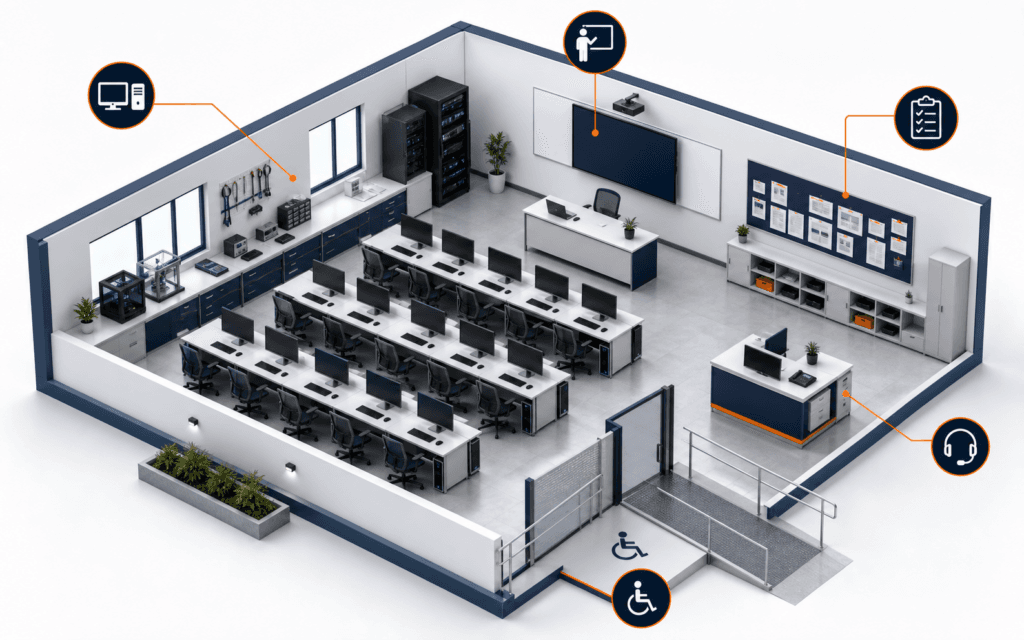
Also confirm what the institute supplies. The official NAVTTC institute registration portal describes attention to infrastructure, labs or workshops, trainers, equipment, and institutional quality. That is an institutional responsibility, while the learner’s responsibility is to understand access rules, follow safety guidance, and prepare only the items the provider actually requires.
Audit The Device Before Class
Check that the device starts reliably, installs approved updates, connects to Wi-Fi, detects audio, and has enough free storage for course files. Test the charger and battery under a normal working session. If the machine is shared, create a separate user profile where permitted so personal files, browser sessions, and application settings do not become mixed with another person’s work.
Run the exact applications named by the institute and open a small sample project. Do not assume that successful installation means the workflow is usable. Confirm that you can create, save, close, reopen, and export the expected file type. Record the operating system and application versions so support staff can understand the environment when a problem appears.
Prepare Accounts Without Sharing Credentials
Create required accounts through official websites and use a unique password for each important service. Enable multifactor authentication when available, then store recovery codes in a private, durable location. Never place a password, verification code, or private recovery key in a class document, screenshot, shared chat, source repository, or assignment submission.
Sign in before class and verify the account email address, profile name, and recovery method. If a lab computer is shared, use the provider’s sign-out procedure and avoid saving passwords in the browser. Ask the instructor how licensed software and classroom platforms are provisioned rather than borrowing another learner’s access or installing unapproved copies.
Build A File System You Can Explain
Create one top-level folder for the course, then separate lessons, exercises, projects, references, exports, and submissions. Use short descriptive names with dates or version numbers only where they help. Avoid folders called final, final-new, or latest because those labels lose meaning after several revisions. Keep original assets separate from edited files so a mistake does not destroy the source.
Learn where the application actually saves files. Some tools create linked assets, caches, databases, or hidden configuration in addition to the visible document. Before moving a project, identify which folder represents the complete unit. Test by copying it to another location and opening it there without relying on files scattered across Downloads or the desktop.
Use A Simple Backup Routine
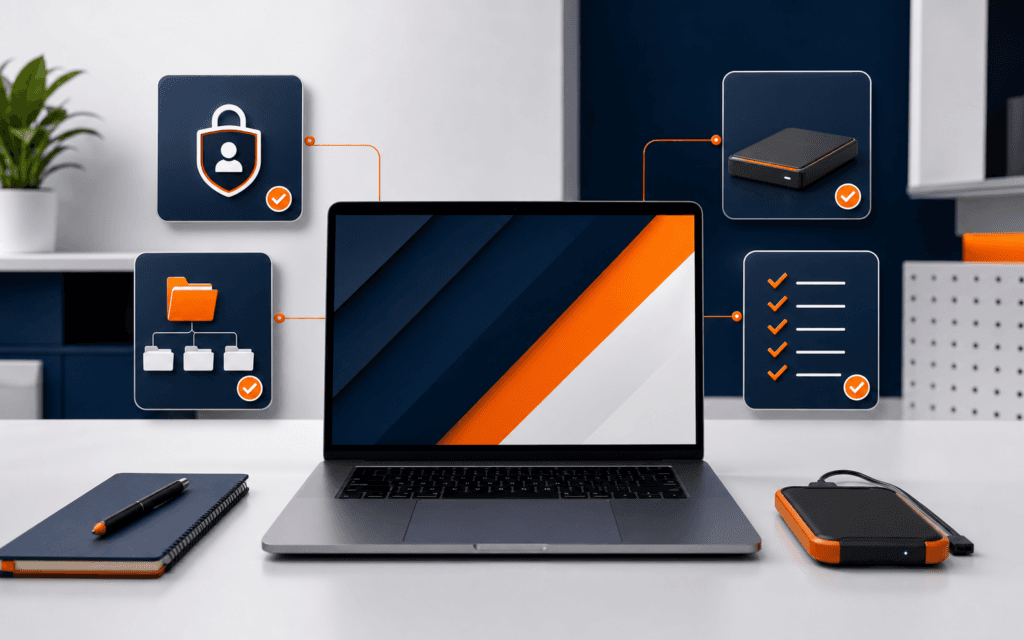
Keep at least one additional copy of important work outside the active course folder. That might be an approved cloud drive, an external drive, or a repository when the project is suitable for version control. Synchronization is useful, but it is not proof of backup if accidental deletion or corruption immediately propagates to every device.
Choose a repeatable checkpoint: after each class, before a major revision, and before submission. Confirm that the backup can be opened, not merely that a folder icon appears. Do not upload personal data, licensed course material, client information, secrets, or private institute resources to a public repository or an unapproved storage service.
Rehearse The Complete Practice Cycle
Use a small neutral exercise to rehearse the whole workflow. Open the instructions, create the required file, save it in the correct folder, produce the expected output, close the application, reopen the project, and inspect the result. Then make a backup and locate the file from a fresh application window rather than from recent-file history.
Write down where friction occurs. A slow download, missing font, unclear folder, account prompt, unsupported file type, or failed export is easier to resolve before an assessed task. Ask a specific question that includes the step, expected result, actual result, and any non-sensitive error message. This gives instructors useful evidence without exposing credentials.
Plan Practice Around Deliverables
Schedule short practice blocks around observable outputs rather than broad intentions. A block might produce one styled page, one edited image, one database query, or one tested form. Begin by recreating the class method, then change one meaningful requirement and verify the result. Deliberate variation shows whether you understand the process rather than only remember clicks.
Keep a compact practice log with date, task, result, difficulty, evidence location, and next question. The log should help you resume work and discuss problems; it should not become a second assignment. UNESCO’s technical education resources emphasize practical capabilities that remain connected to evolving technology and work, which makes repeated application more valuable than passive collection of notes.
Prepare For Shared And Limited Lab Conditions
Assume that classroom time, bandwidth, power outlets, and equipment access may be limited. Download only authorized materials in advance, carry the required charger and adapters, and keep an offline copy of instructions when permitted. Arrive with files organized so setup does not consume the first part of a practical session.
Respect lab policies. Do not change security settings, connect unknown devices, install unapproved software, or alter another learner’s files. Report damaged equipment or unsafe cabling to staff. The NAVTTC quality framework places labs, equipment, faculty, accreditation, and quality assurance within a broader institutional system; learners support that system by using resources responsibly.
Know When To Ask For Support
Ask for help after you have identified the failing step and preserved the evidence. State the course, lesson, device or lab station, application version, expected behavior, actual behavior, and what you already tried. Remove passwords, tokens, private URLs, and personal information from screenshots and logs before sharing them.
Escalate immediately when the issue concerns electrical safety, account compromise, lost assessment work, harassment, accessibility, or an instruction that conflicts with institute policy. Do not improvise around security controls. For current enrollment and course-specific preparation, use the Rising Edge admissions page and confirm details directly before making purchases.
Plan Accessibility And A Recovery Path
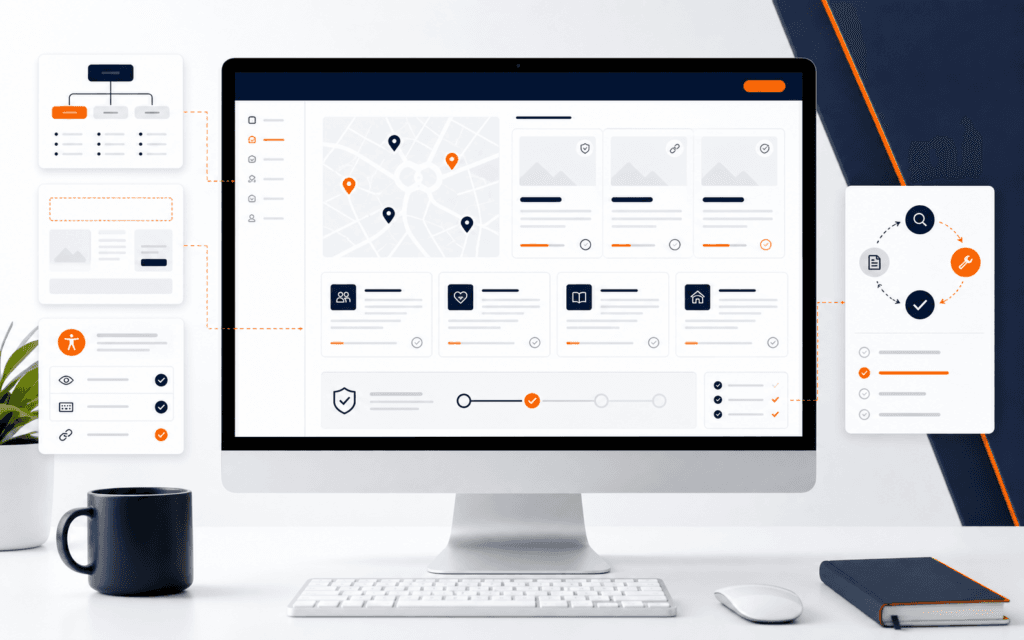
Tell the institute about accessibility needs through its approved channel early enough for staff to discuss reasonable arrangements. Relevant needs may involve screen magnification, keyboard access, captions, seating, breaks, input devices, readable materials, or extra setup time. Describe the barrier and the support that helps you participate; do not wait for an assessed lab to discover that an essential application or classroom resource is unusable.
Prepare a recovery path for ordinary disruption. Know how to restore files from backup, regain account access without sharing credentials, contact the correct support channel, and continue with permitted offline material during an internet interruption. Recovery planning is not a promise that every failure can be solved immediately. It reduces panic and keeps the response aligned with institute policy instead of unsafe improvisation.
Keep a small readiness record that lists confirmed requirements, completed checks, unresolved questions, and the date each item was verified. Do not store passwords or sensitive medical information in it. Review the record when the course changes software or moves to a different lab. A dated record prevents an old setup assumption from silently becoming the basis for a new class.
Run A Final Readiness Check
Two days before class, repeat the startup, sign-in, sample-file, export, reopen, and backup checks. Verify transport and attendance details, pack the charger, and place required files where they are available without searching through messaging apps. Keep a written support contact or institute channel available if access fails.
Readiness is complete when you can begin a small practical task, preserve the result, explain where every file belongs, and recover from a normal restart. It does not guarantee that every lesson will be easy. It creates a dependable baseline so class time can be spent learning the subject instead of reconstructing an avoidable setup.
For a broad practical development path, compare these preparation habits with the project requirements in the Full Stack Web Development program. Confirm current device, software, schedule, and support requirements directly before enrollment.
This topic also has a local training use for students in Gujrat, Punjab, Pakistan: the practical approach in this article can be compared with practical exercises in the Full Stack Web Development. Confirm current batch requirements directly and judge the learning path by inspectable work.
FAQ
Do I need to buy a laptop before joining an IT course?
Not necessarily. Ask the institute whether it provides lab computers and obtain the exact current requirements for your course. Purchase equipment only after confirming compatibility and access expectations.
What should I back up during practical training?
Back up project files, original assets, permitted references, and submission evidence. Keep secrets, private data, licensed materials, and restricted institute resources out of public or unapproved storage.
How can I practice if I use a shared computer?
Use a separate approved profile, maintain an organized course folder on permitted storage, sign out fully, and keep a verified backup. Follow the lab’s rules for software installation and removable devices.
Want to Build Practical Technology Skills?
Explore RisingEdge courses designed to help students learn real skills, build projects, and prepare for career opportunities.