Diagnose A Slow WordPress Site: A Measured Audit
A WordPress performance audit should measure the slow experience, protect the site, isolate the bottleneck, make one reversible change, and test again. Do not begin by installing.

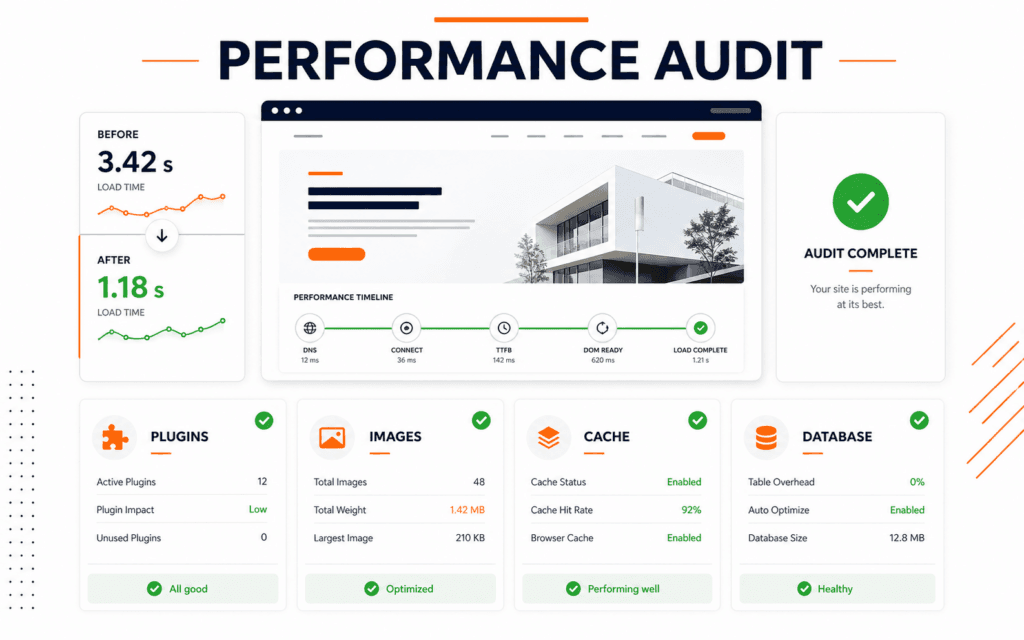
A WordPress performance audit should measure the slow experience, protect the site, isolate the bottleneck, make one reversible change, and test again. Do not begin by installing several optimization plugins. That can hide the original cause, create overlapping cache behavior, and make rollback difficult.
Use this audit order: establish a baseline, inspect hosting and WordPress health, test plugins and the theme safely, review images and front-end files, verify caching, examine database symptoms, and compare the same pages after each change. The goal is not a perfect score. The goal is a faster, stable site with evidence that the change helped real pages.
Protect The Site Before Testing
Create a verified backup of files and database before changing plugins, themes, cache rules, PHP versions, or database records. Confirm that the backup can be restored and record the current WordPress, theme, plugin, and PHP versions.
Use a staging environment for plugin deactivation, theme switching, database cleanup, and configuration experiments. A staging result still needs production verification because hosting, traffic, cache layers, and third-party services may differ.
Define a rollback point for every change. If a test affects checkout, forms, login, search, analytics, or structured data, restore the previous state before investigating another variable.
Choose Representative Pages
Audit several page types instead of testing only the home page. Include a typical article, a course or service page, an archive, a search or filtered view, a form, and an authenticated page if performance problems affect logged-in users.
Record page URL, device profile, test location, login state, cache state, timestamp, and result. Run more than one test because network and server conditions vary.
Use the same pages and conditions after each change. Comparing unrelated URLs or different devices can make an ineffective change look successful.
Read Field And Lab Data Correctly
Google PageSpeed Insights combines field data, when sufficient Chrome User Experience Report data exists, with lab diagnostics from Lighthouse. Field data describes real user experience over a recent period, while lab data helps reproduce and diagnose a page under controlled conditions.
Core Web Vitals currently focus on Largest Contentful Paint for loading performance, Interaction to Next Paint for responsiveness, and Cumulative Layout Shift for visual stability. Treat them as user-experience signals, not as the entire performance story.
A page can have good lab results and still feel slow to users because of geography, server load, logged-in behavior, third-party scripts, or interactions not represented in the test. Use analytics, server monitoring, and user reports alongside synthetic tests.
Establish A Baseline
Save the initial results before changing anything. Record response timing, transferred bytes, request count, main image size, blocking resources, long tasks, layout shifts, and any server errors. Screenshots and exported reports make later comparisons easier.
Open browser developer tools and inspect the Network and Performance panels. Identify whether the delay occurs before HTML arrives, while assets download, during JavaScript work, or after an interaction.
Write one working hypothesis such as “uncached HTML response is slow,” “the hero image dominates loading,” or “a script blocks interaction.” A specific hypothesis determines the next safe test.
Check Site Health And Versions
Open Tools > Site Health in WordPress. The Site Health screen surfaces critical issues and recommended improvements related to site configuration. Review the status results and the information panel before adding software.
Check supported versions of WordPress, PHP, the active theme, and plugins. Updates can include performance and security improvements, but production updates still require backups, compatibility review, staging, and functional tests.
Look for failed scheduled events, inactive plugins, persistent object cache recommendations, excessive autoloaded options, REST or loopback problems, and other reported conditions. Treat each finding as a lead, not automatic permission to change production.
Separate Server Delay From Browser Work
If the initial document takes a long time to begin arriving, investigate hosting resources, PHP execution, uncached database queries, external calls, and page generation. If HTML arrives quickly but the page remains incomplete, inspect images, fonts, CSS, JavaScript, and third-party embeds.
Compare a cached visit with an uncached visit. Also compare logged-out and logged-in responses because many cache systems bypass authenticated users.
Ask the hosting provider for CPU, memory, process, PHP worker, database, and error-log evidence during the slow period. Do not upgrade hosting or tune a database only because a generic test recommends it.
Audit Plugins By Function And Cost
Create an inventory with plugin purpose, owner, active use, update status, overlap, and business dependency. WordPress performance guidance notes that plugin number and plugin performance can affect a site, and recommends removing unnecessary plugins and selectively testing plugins to measure impact.
Plugin count alone is not a diagnosis. One plugin can perform expensive queries or external requests while several small plugins may have negligible cost. Use timing, query, request, and functional evidence.
On staging, disable one suspected plugin at a time, clear relevant caches, repeat the same tests, and verify site features. If performance improves, inspect the plugin settings, documentation, support, and alternatives before removing it from production.
Review The Theme And Page Builder
Test whether the active theme or builder adds large style sheets, scripts, fonts, animation libraries, duplicated markup, or expensive dynamic queries. A temporary staging comparison with a standard theme can help distinguish theme cost from content and plugin cost.
Do not switch the live theme as a diagnostic shortcut. Theme changes can alter templates, widgets, menus, custom post types, structured data, and tracking.
The Web Design course is relevant because layout choices, font loading, image treatment, animation, and component reuse affect perceived and measured performance.
Audit Images At Their Display Size
Identify the Largest Contentful Paint element and the largest transferred images. Check intrinsic dimensions, displayed dimensions, format, compression, responsive srcset, loading behavior, and whether an image is above or below the fold.
WordPress guidance recommends choosing appropriate formats and compression and notes modern formats such as WebP. Do not convert every image blindly. Compare visual quality, browser support needs, transparency, and file size.
Avoid lazy-loading the primary above-the-fold image when it delays discovery. Reserve lazy loading for content that begins outside the initial viewport, and set width and height so the layout does not shift while media loads.
Inspect Fonts CSS JavaScript And Embeds
Review the request waterfall for unused font families and weights, render-blocking styles, large bundles, duplicate libraries, tag-manager scripts, video embeds, chat widgets, advertising code, and social feeds.
Remove or delay an asset only after confirming its purpose. Aggressive JavaScript delay can break menus, consent controls, forms, analytics, and checkout. CSS combination or removal can create intermittent layout defects across templates.
Test desktop and mobile interactions after optimization. Performance work is incomplete if a faster page loses accessibility, tracking accuracy, or a critical business function.
Verify Page Browser And Object Caching
Page caching stores generated HTML so repeated public requests do not rebuild the page through PHP and the database. Browser caching lets returning visitors reuse static files. Persistent object caching can reduce repeated database work when the host supports it.
Map the cache layers before installing a cache plugin: host or server cache, CDN or edge cache, WordPress page cache, object cache, browser cache, and application-specific cache. Overlapping tools can purge inconsistently or apply conflicting optimization.
Check cache headers and repeat requests. Confirm that public pages receive the intended cache result and that personalized, cart, account, preview, and administrative pages are excluded where necessary.
Review Database Symptoms Safely
Database size alone does not prove a performance problem. Look for slow queries, repeated queries, large or frequently loaded options, expired transients, oversized logs, abandoned plugin tables, and content revisions only when evidence points to database work.
Do not delete tables or options by name without confirming ownership and backup. A deactivated plugin may still contain business data required for reactivation, migration, or compliance.
Use a controlled maintenance window for cleanup. Record row counts and sizes before and after, then test administration, search, forms, scheduled tasks, and public pages.
Check Scheduled Work And External Calls
WordPress scheduled events, backups, security scans, feed imports, email jobs, and API calls can consume resources or delay requests. Check whether slow periods align with scheduled activity.
External calls should use appropriate timeouts and should not block the public page when a queued or cached workflow is possible. Review failures in application and server logs.
Move heavy jobs carefully and verify that changing the schedule does not delay orders, messages, publication, or security operations.
Make One Change And Retest
Clear only the caches affected by the change, then repeat the original test set. Compare median results across multiple runs, not only the fastest screenshot.
Record the change, reason, before result, after result, functionality checks, and rollback status. If the result does not improve, undo the change before moving to the next hypothesis.
This measured approach makes performance work teachable and maintainable. The WordPress Development course connects because responsible site operations require backups, diagnostics, implementation, and verification together.
Confirm SEO And User Experience
After performance changes, crawl or manually inspect canonical tags, metadata, robots directives, structured data, internal links, status codes, redirects, and XML sitemaps. Cache and optimization settings can accidentally alter rendered output.
The SEO course is relevant because performance improvements should preserve crawlability, content, and search signals while improving the visitor experience.
Monitor field data, conversions, form submissions, errors, and server resources after release. Core Web Vitals field data changes over time, so keep immediate lab verification separate from longer-term user evidence.
Use A Final Audit Record
Close the audit with a concise record: affected pages, baseline, root cause, changes made, tests passed, remaining risks, owner, and review date. Include any configuration that future updates must preserve.
Prioritize fixes by user impact, evidence, reversibility, and effort. A large hero image or unnecessary plugin may be a safer first fix than server migration or database tuning.
A successful WordPress performance audit leaves the site faster and the team better informed. It does not leave a stack of unexplained optimization settings.
Students considering the WordPress Development can practise this checklist from Gujrat or through live online classes across Pakistan. This makes the course decision more concrete because the learner can evaluate the subject through an actual workflow instead of a broad description.
FAQ
Should I install a cache plugin first?
First identify existing host, CDN, page, object, and browser cache layers. Add or change a cache plugin only when the current architecture and measured bottleneck justify it.
Does having many WordPress plugins always make a site slow?
No. Plugin behavior matters more than the count alone. Inventory plugins, measure suspected cost on staging, and verify business dependencies before removal.
How often should a WordPress performance audit be run?
Run a baseline after launch and repeat after major theme, plugin, hosting, content, or tracking changes. Also investigate when field data, server monitoring, or user reports show a meaningful regression.
Want to Build Practical Technology Skills?
Explore RisingEdge courses designed to help students learn real skills, build projects, and prepare for career opportunities.